An overview of the Members' Area functions
Main Catalog: ManFlowYoga.tv
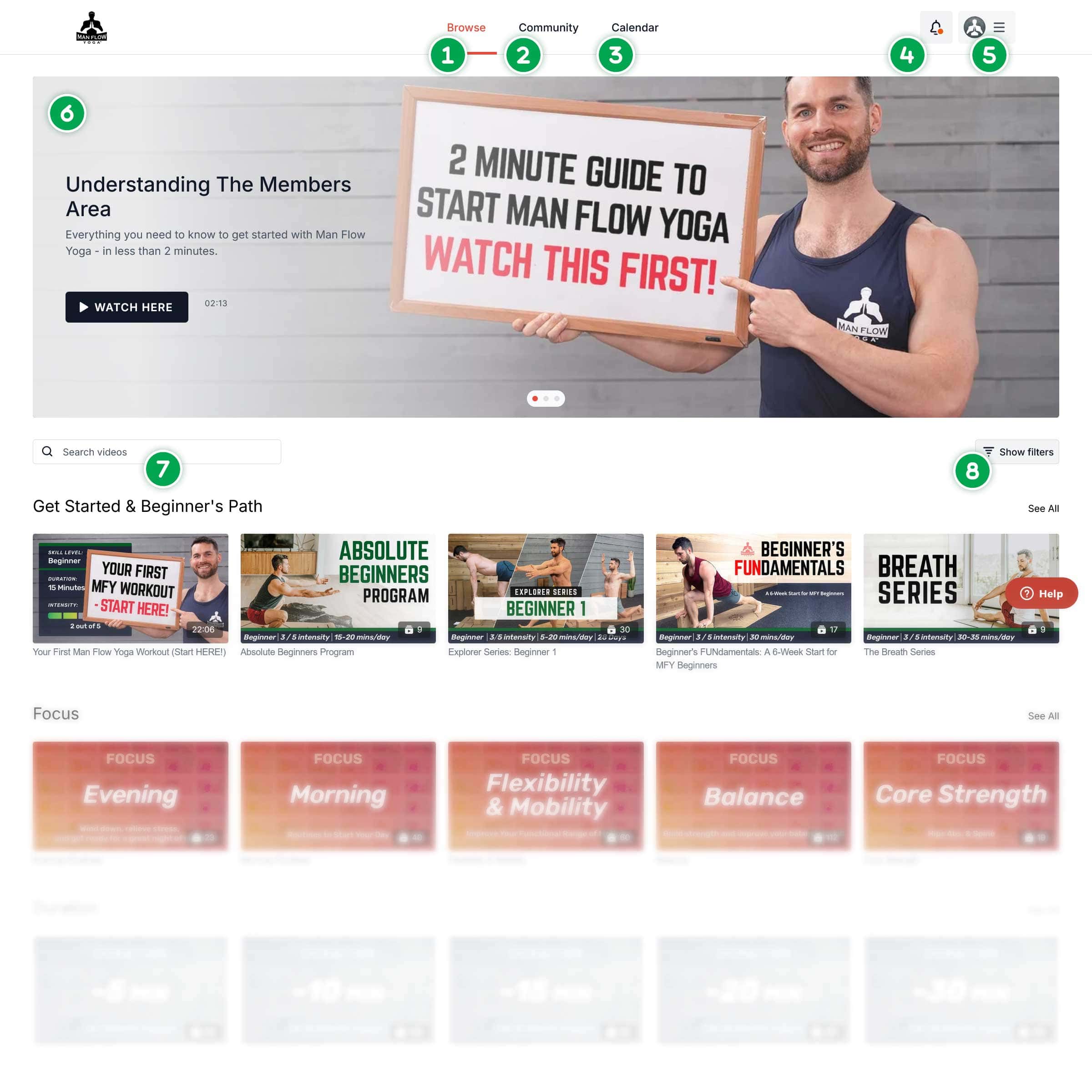
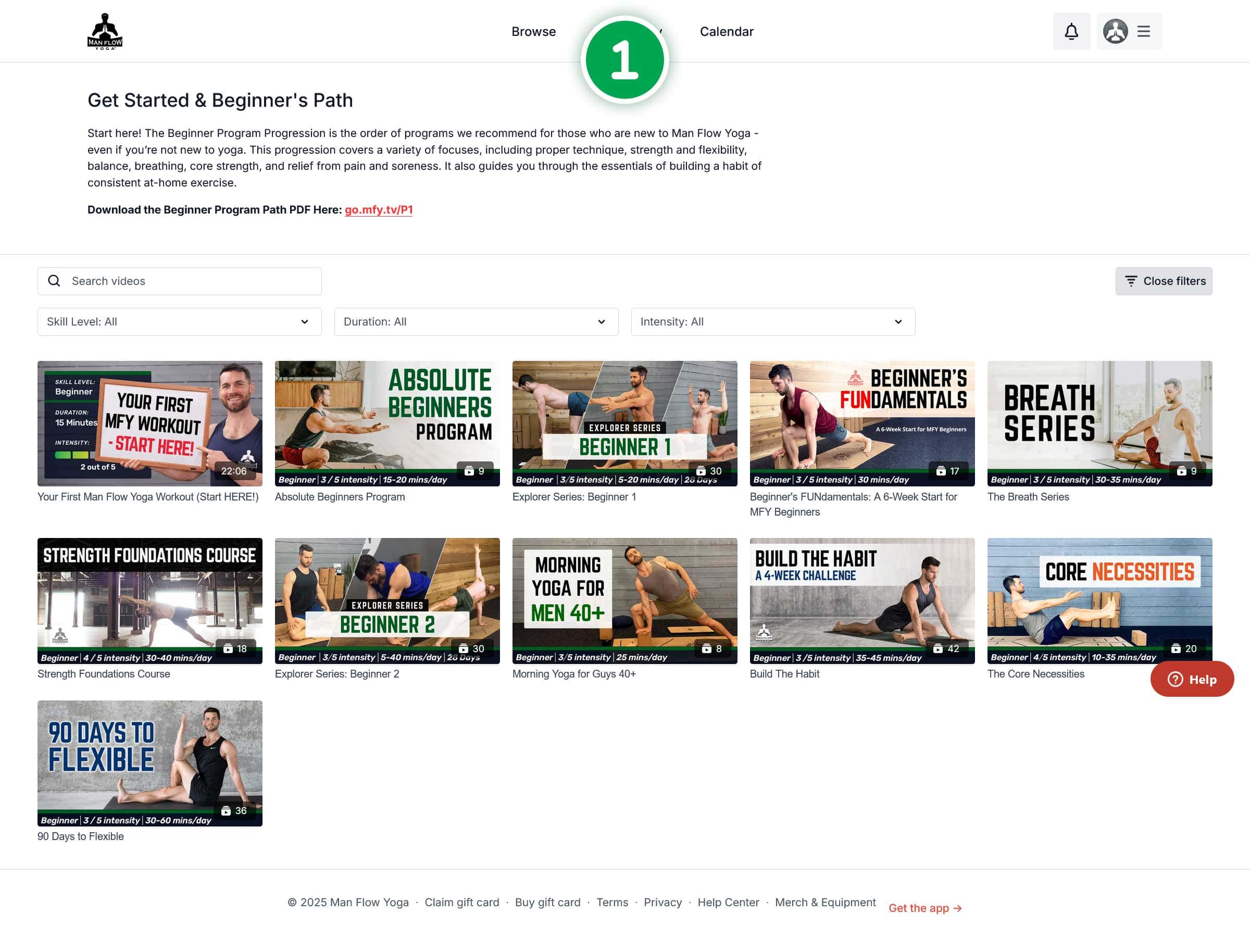
- Browse: Leads you to the Main Catalog
- Community: Communicate with other Members, discuss victories and setbacks, ask Questions
- Calendar: See Upcoming Live events, Schedule your own workouts, View Past Workouts.
- Notifications: New Posts, Replies, and other messages
- Dashboard: Your Profile, Settings, and Billing Information
- Featured Area: Important videos and Information
- Search Bar: a text based search of the Members’ Area
- Filters: Filter workouts by Skill Level, Duration, & Intensity
Main Catalog: Dashboard Menu
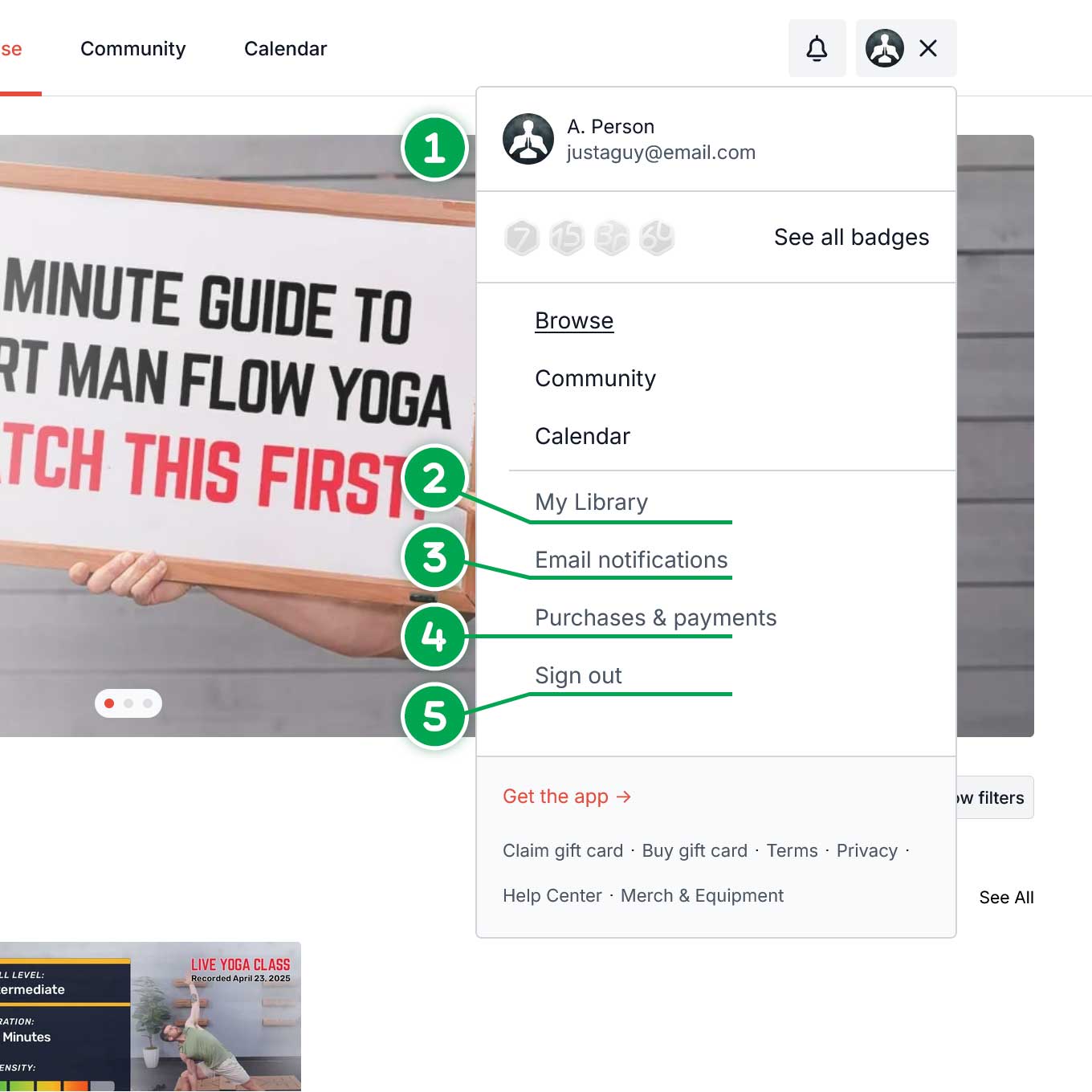
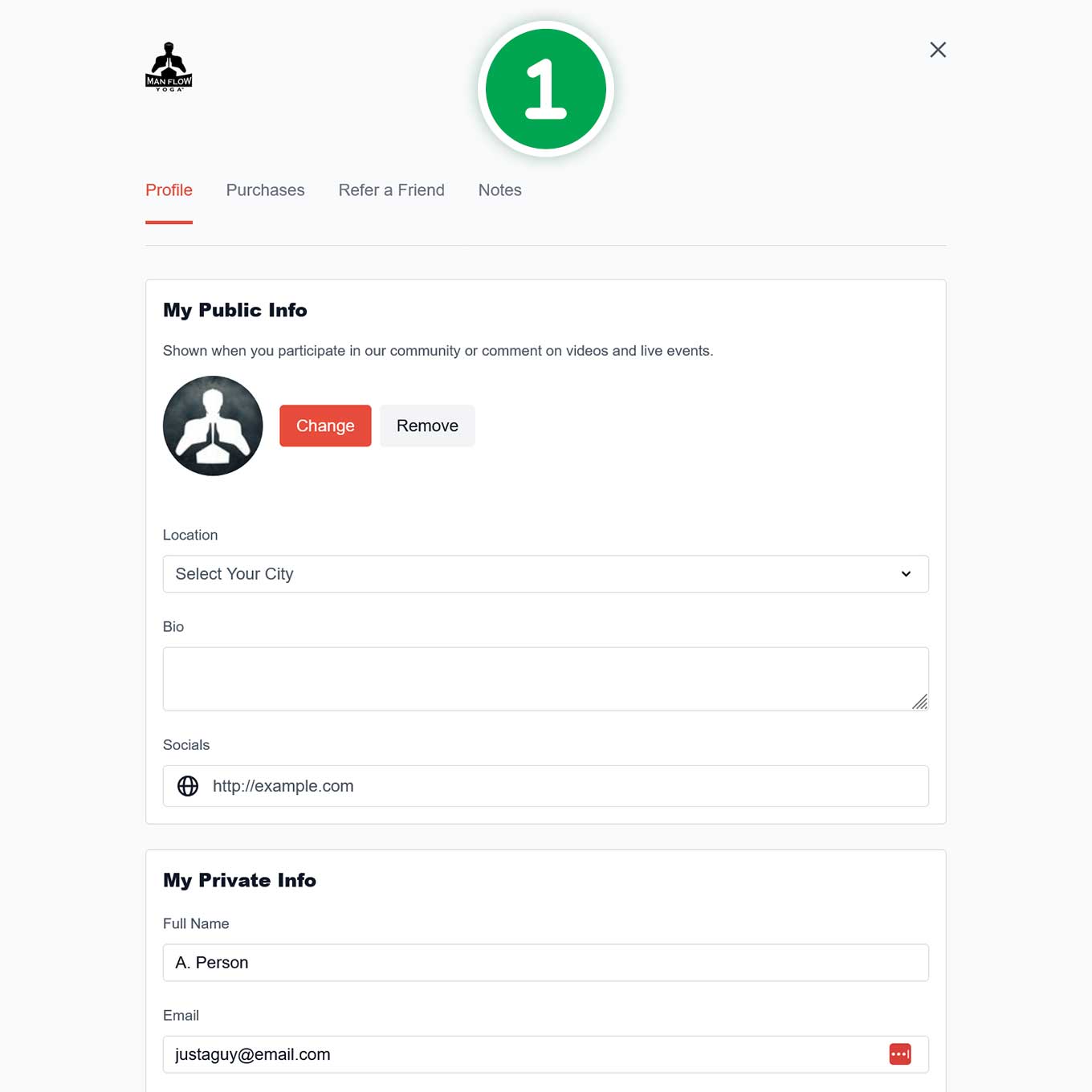
- Profile: Add or update your profile picture, public bio, email, password, and other miscellaneous information.
- My Library: Videos and Programs Purchased Separately from the Members’ Area Subscription
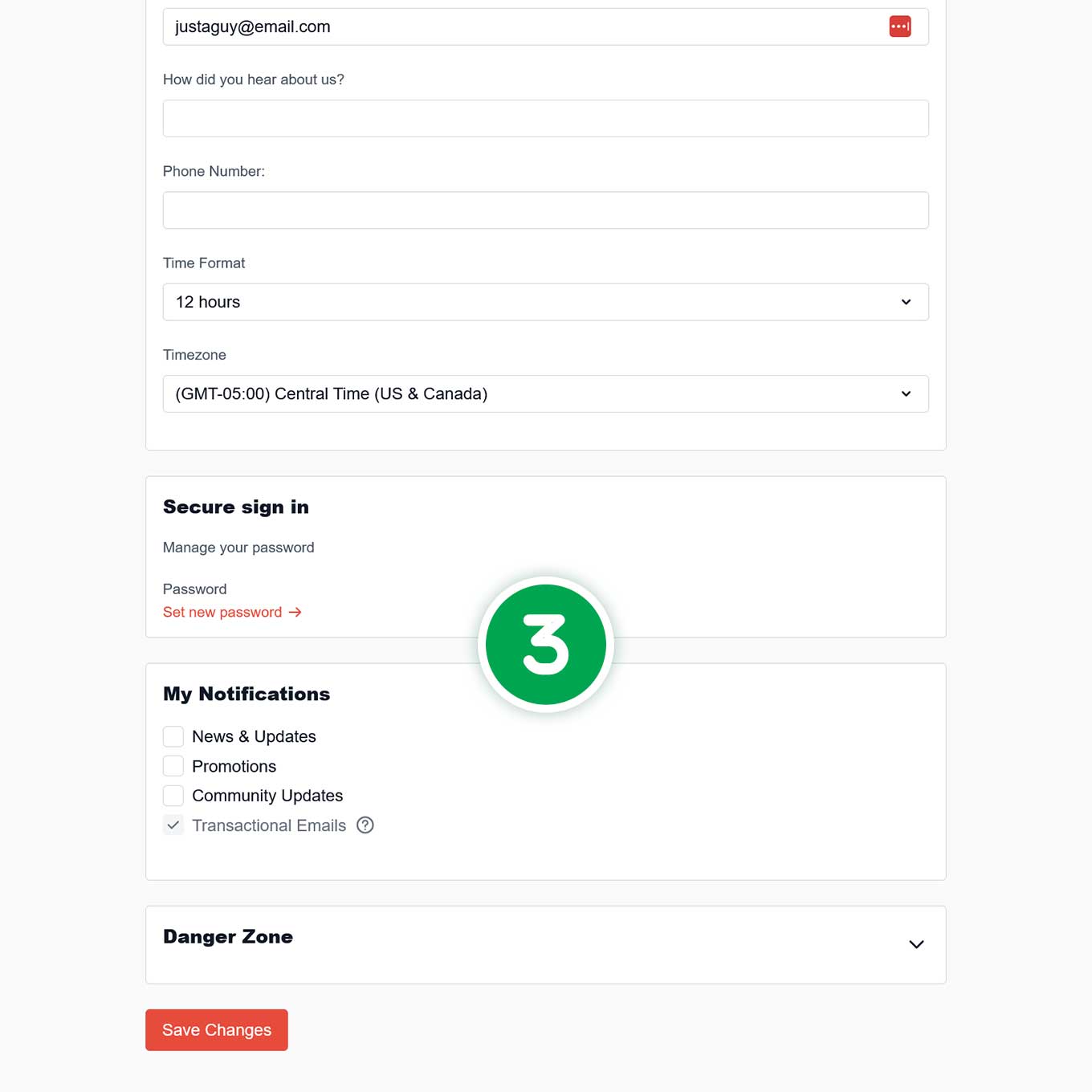
- Email Notifications: Manage what system emails you are sent.
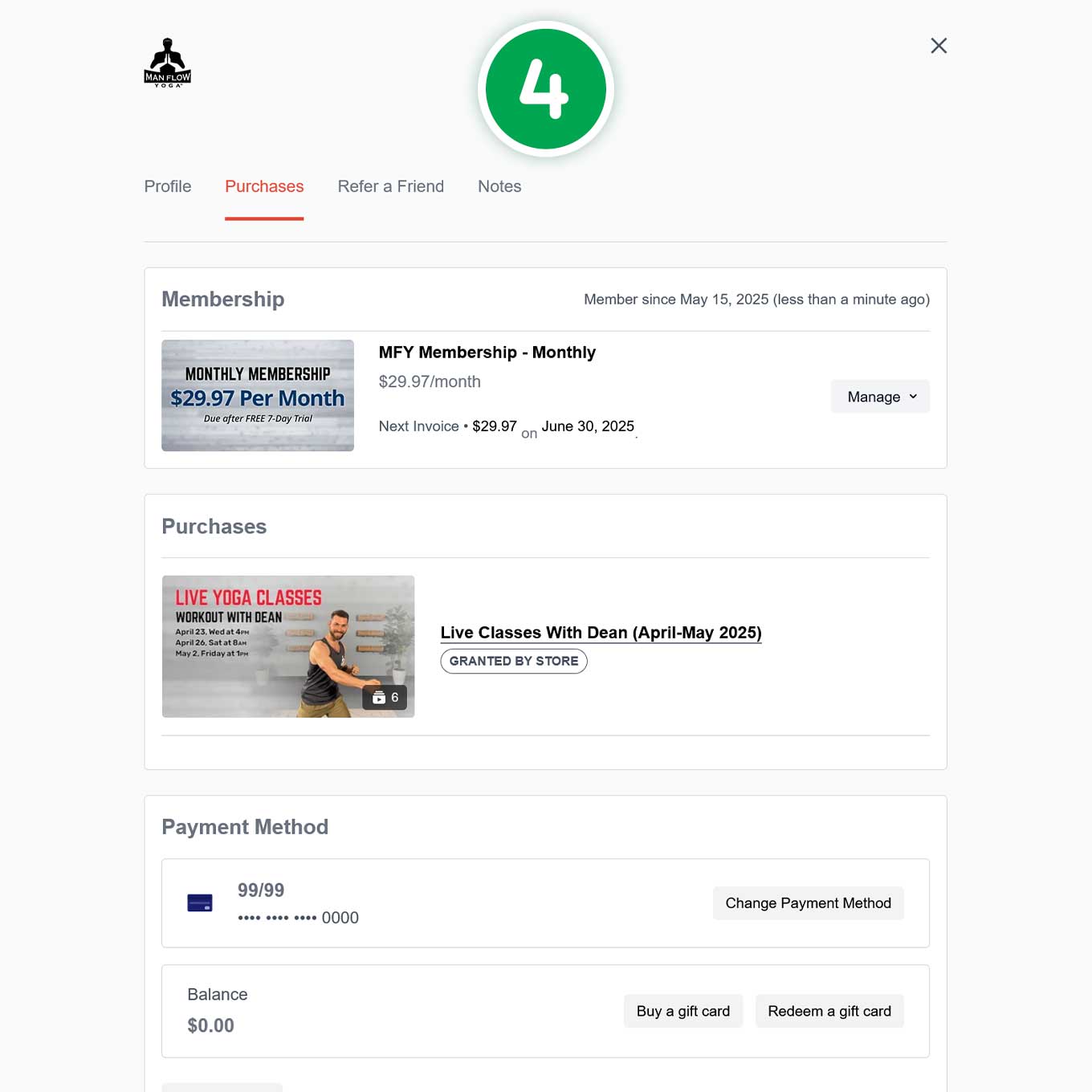
- Purchase and Payments: Your subscription, past purchases, and billing information
- Sign Out: Sign out of ManFlowYoga.tv
Main Catalog: Unique Categories
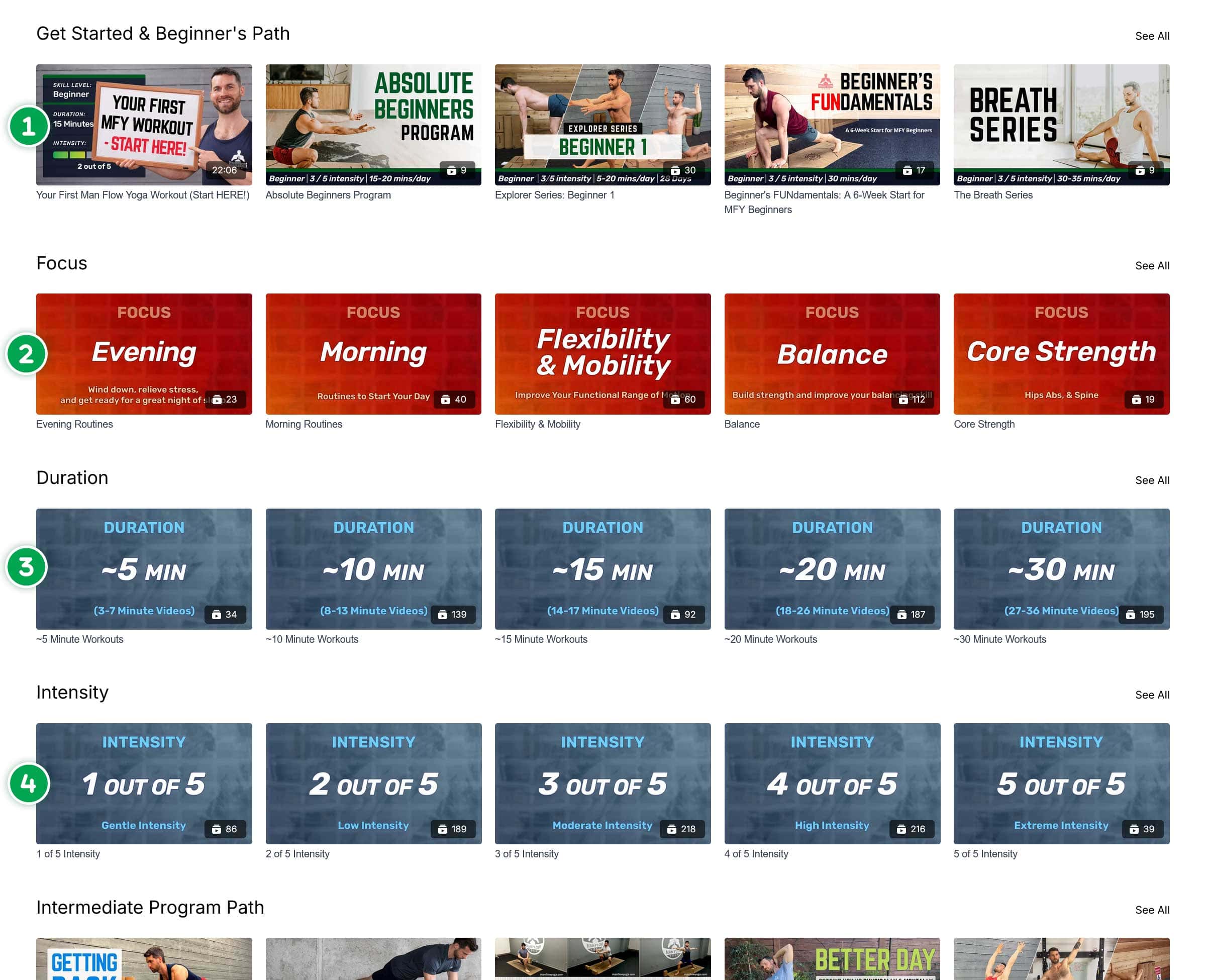
These Categories appear after the Featured Area and are unique to every person. These categories will only appear if you have the requisite items.
- Continue Watching: Videos you have watched at least 30 seconds of, but have not finished, show up here.
- My Library: Videos or programs that you have purchased separate from the Members’ Area.
- Favorite: Individual Workouts or Collections you have Favorited.
Main Catalog: Universal Categories
- Beginner Program Path.
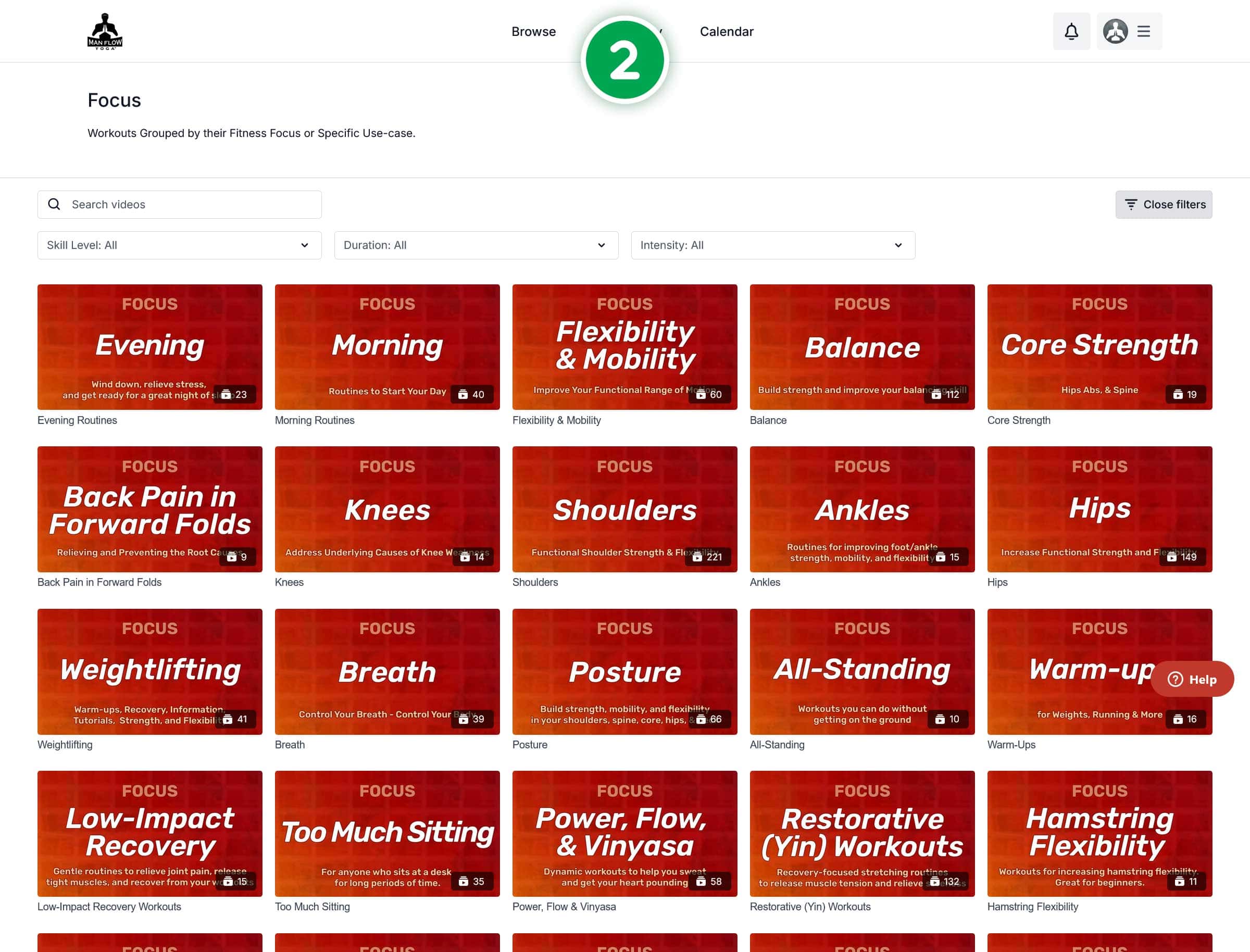
- Focus: Workouts grouped By topic.
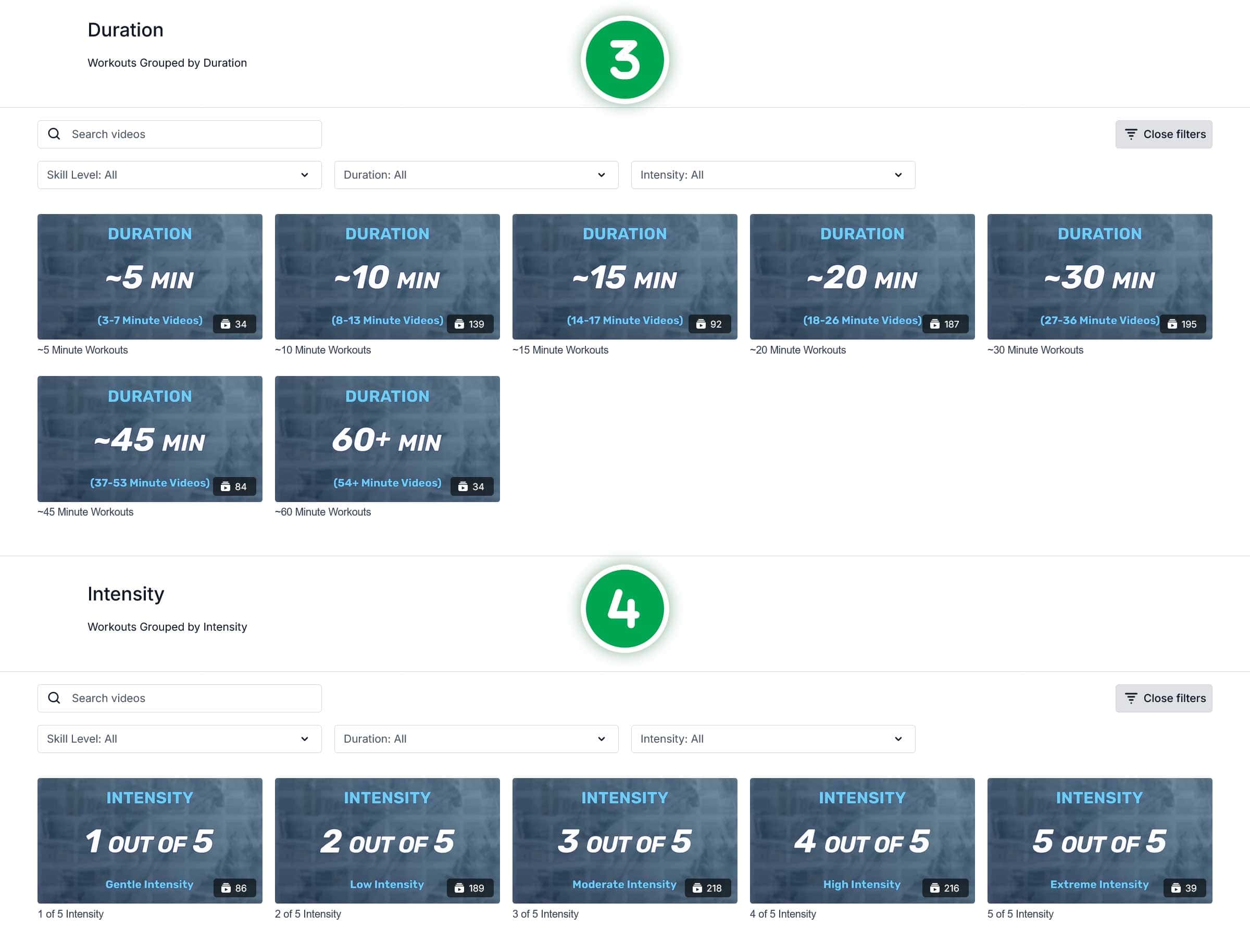
- Duration: Workouts grouped by similar duration.
- Focus: Workouts grouped by similar intensity.
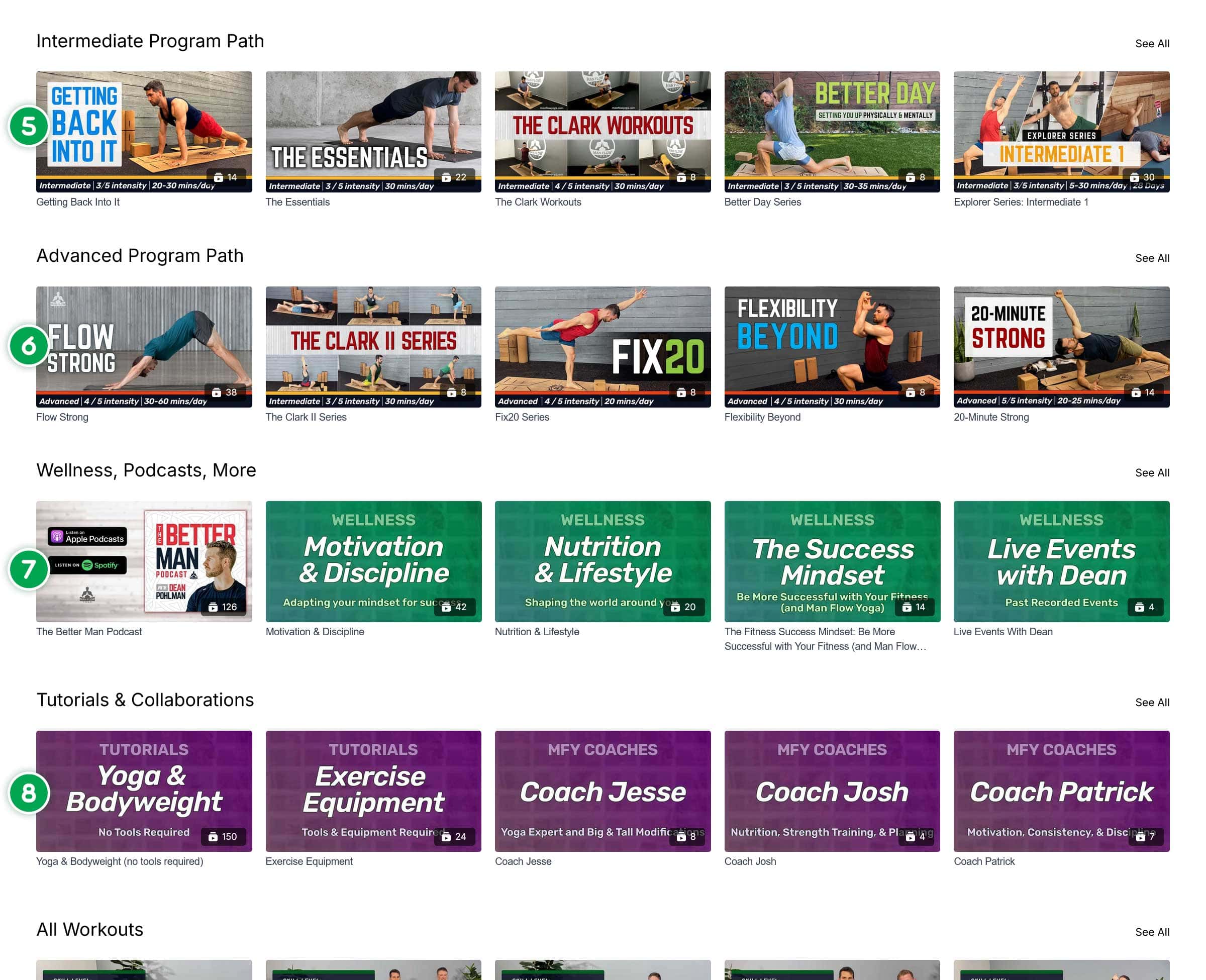
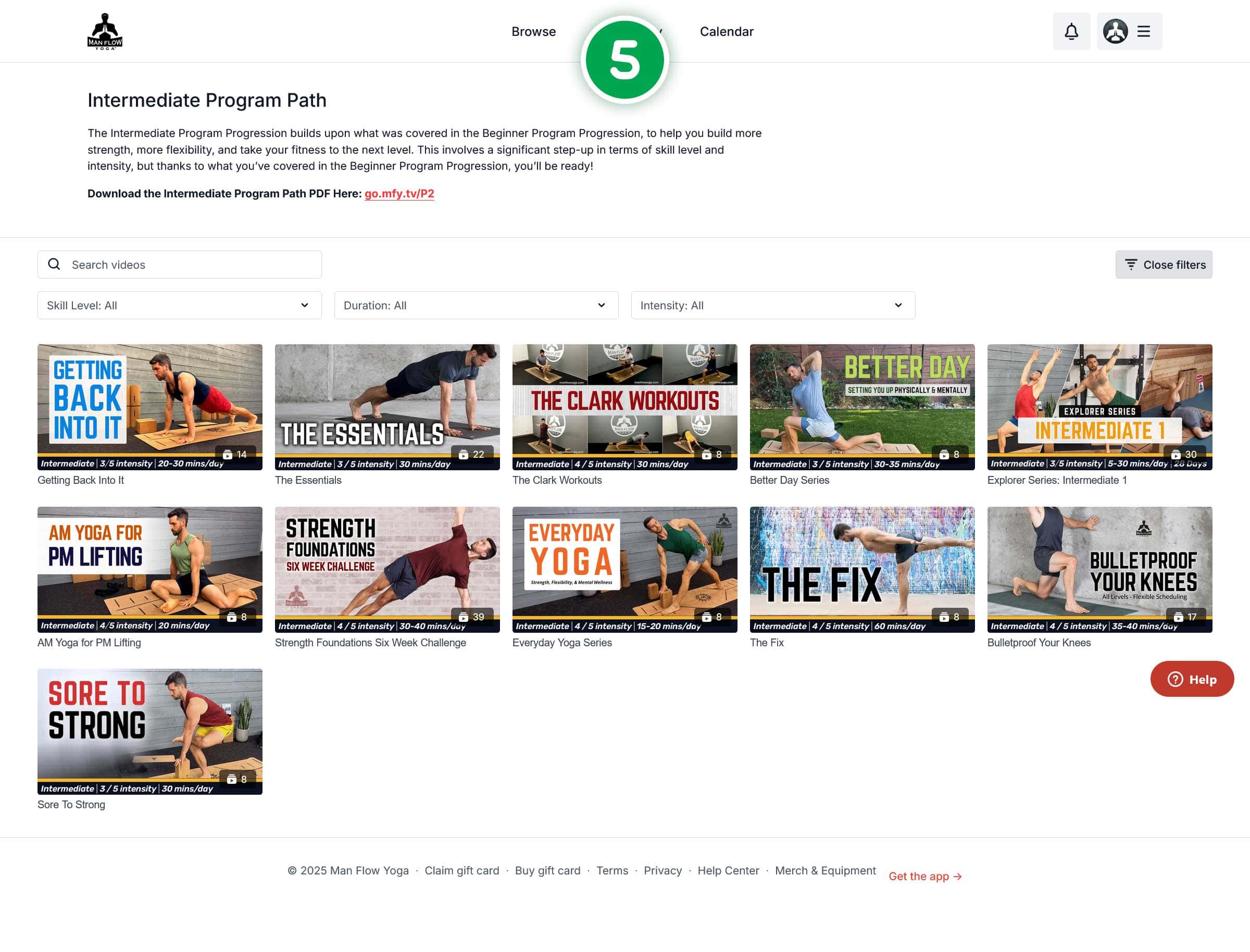
- Intermediate Program Path
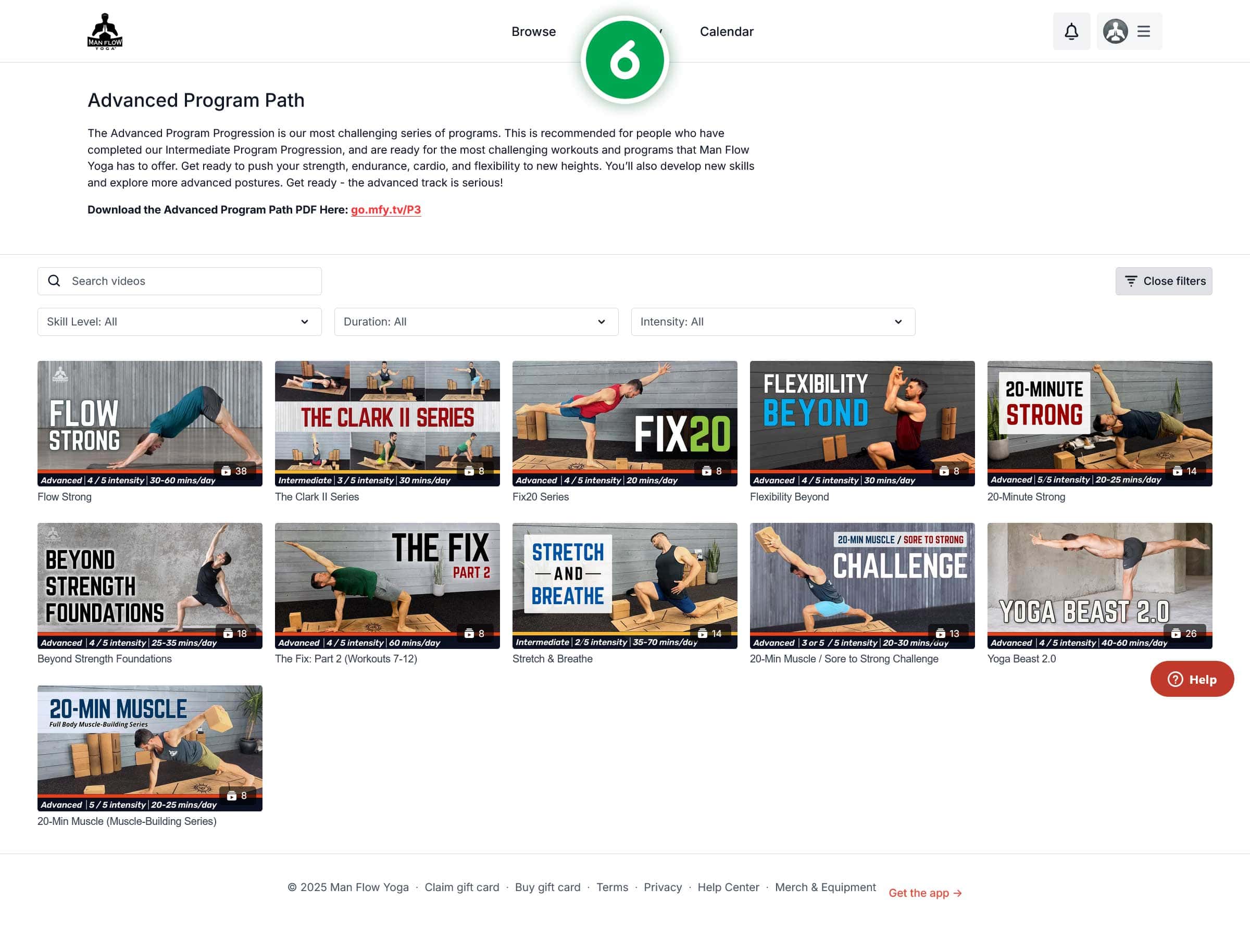
- Advanced Program Path
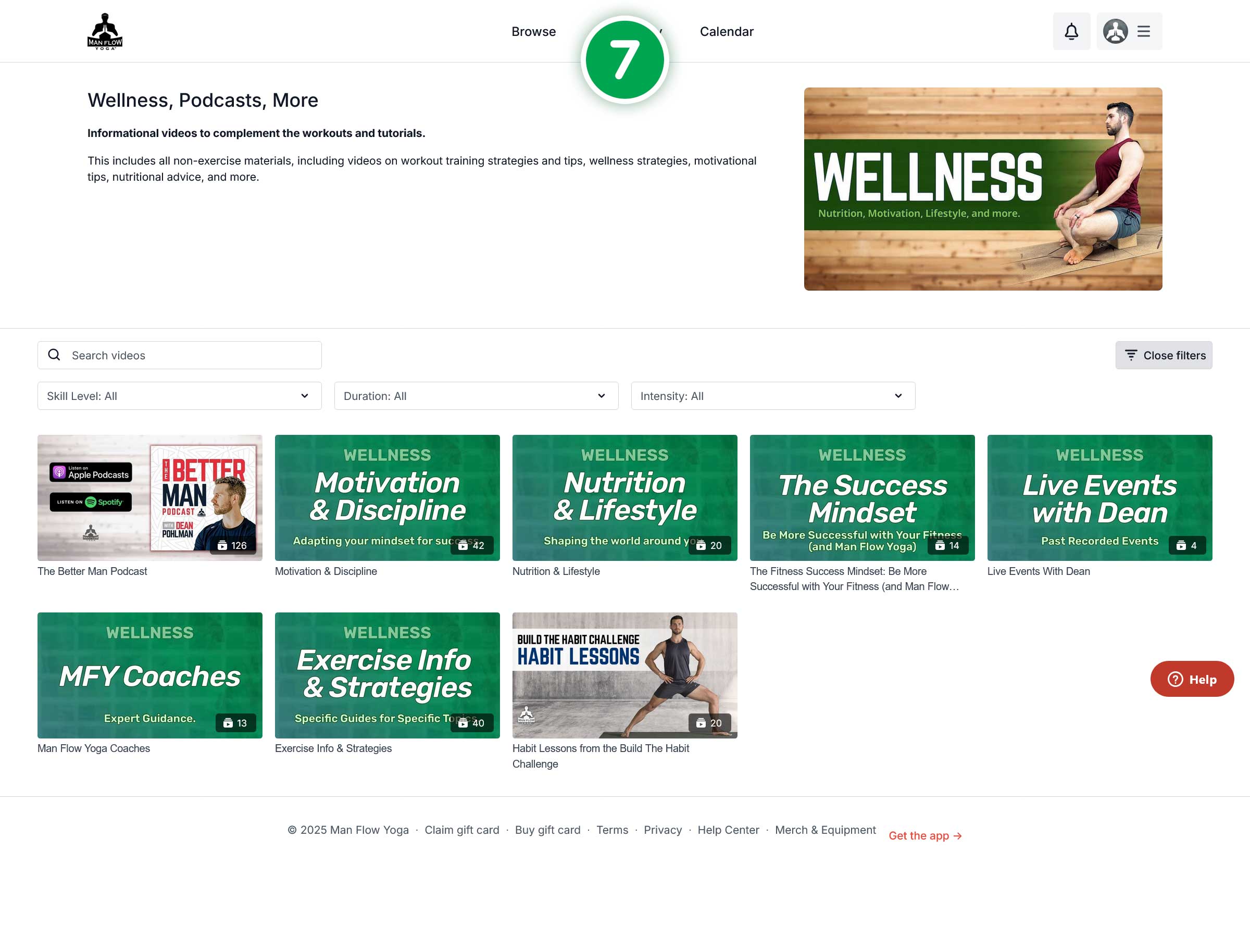
- Wellness Podcasts and more: Videos, not limited to workouts on a variety of topics
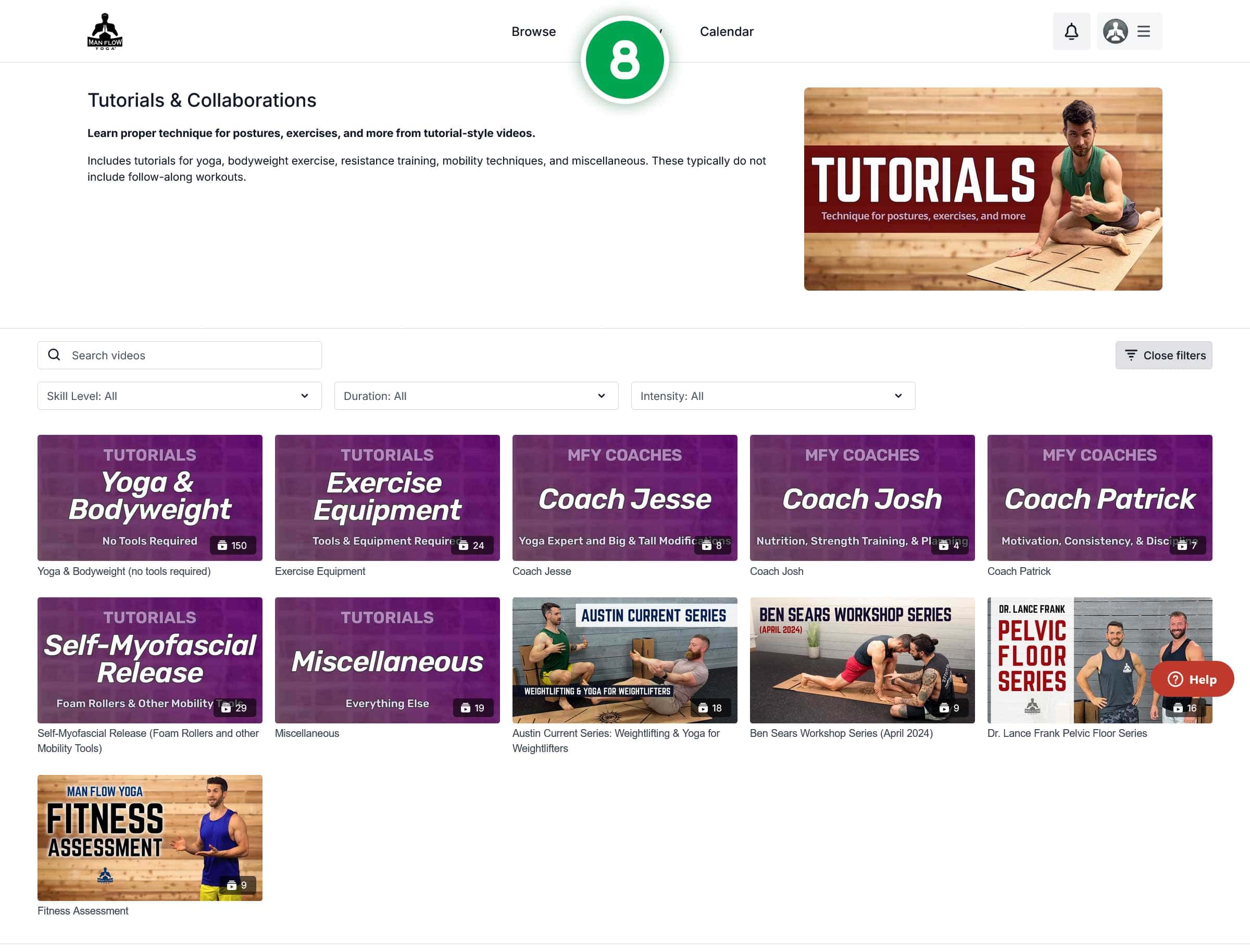
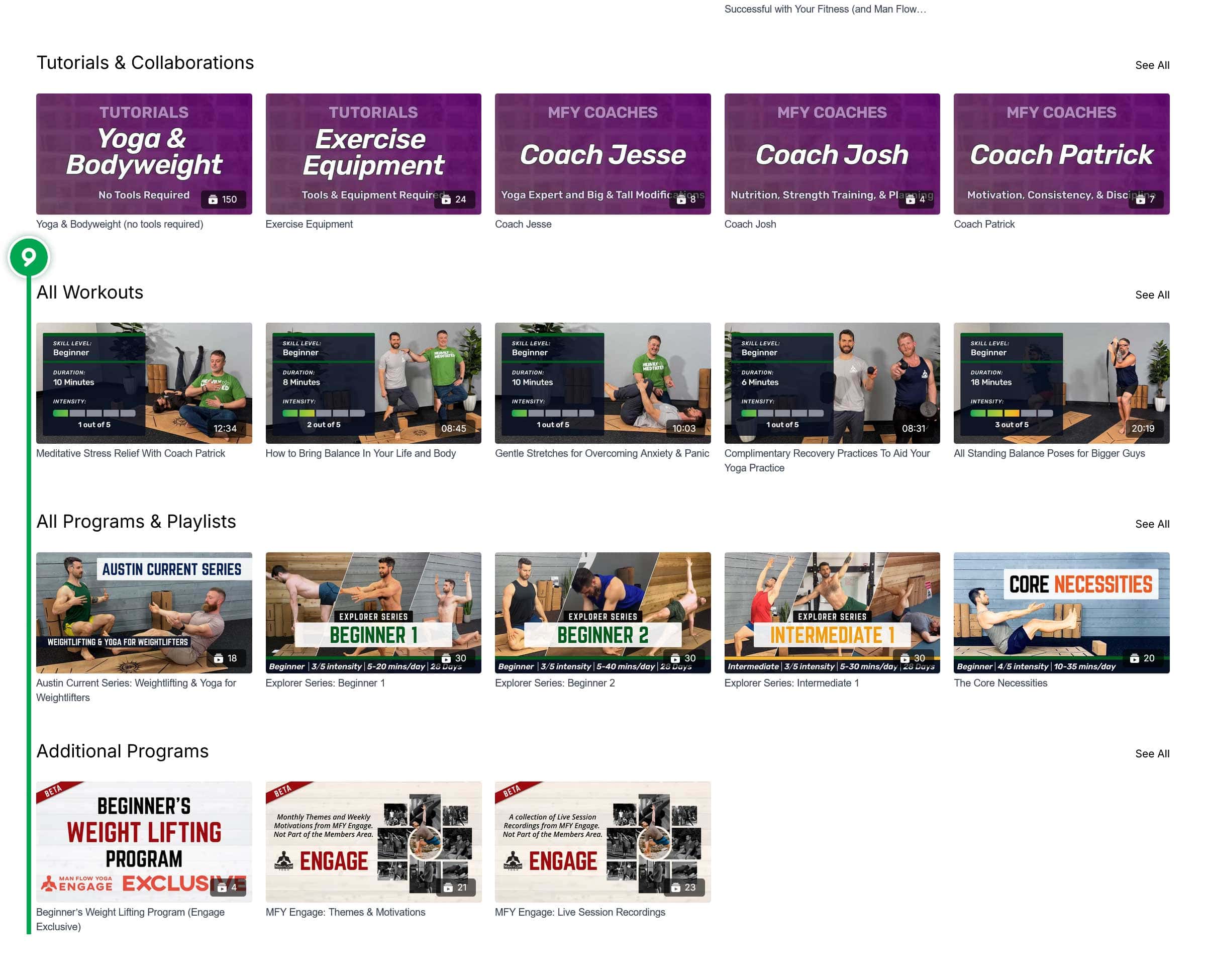
- Tutorials and Collaborations: Videos heavy with instruction
- All Workouts; All Programs & Playlists; Additional Programs
Collection Homepages (Programs & Playlists)
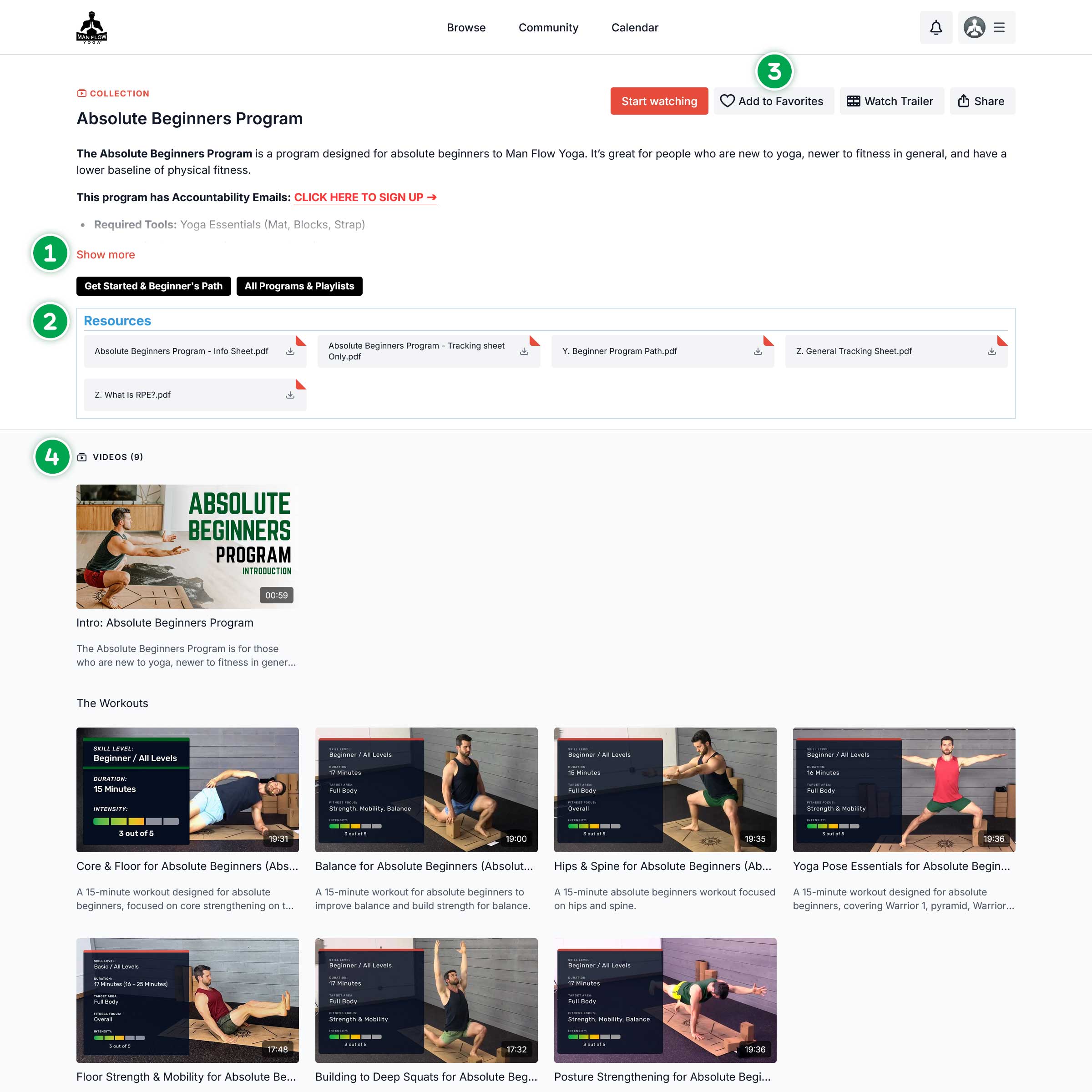
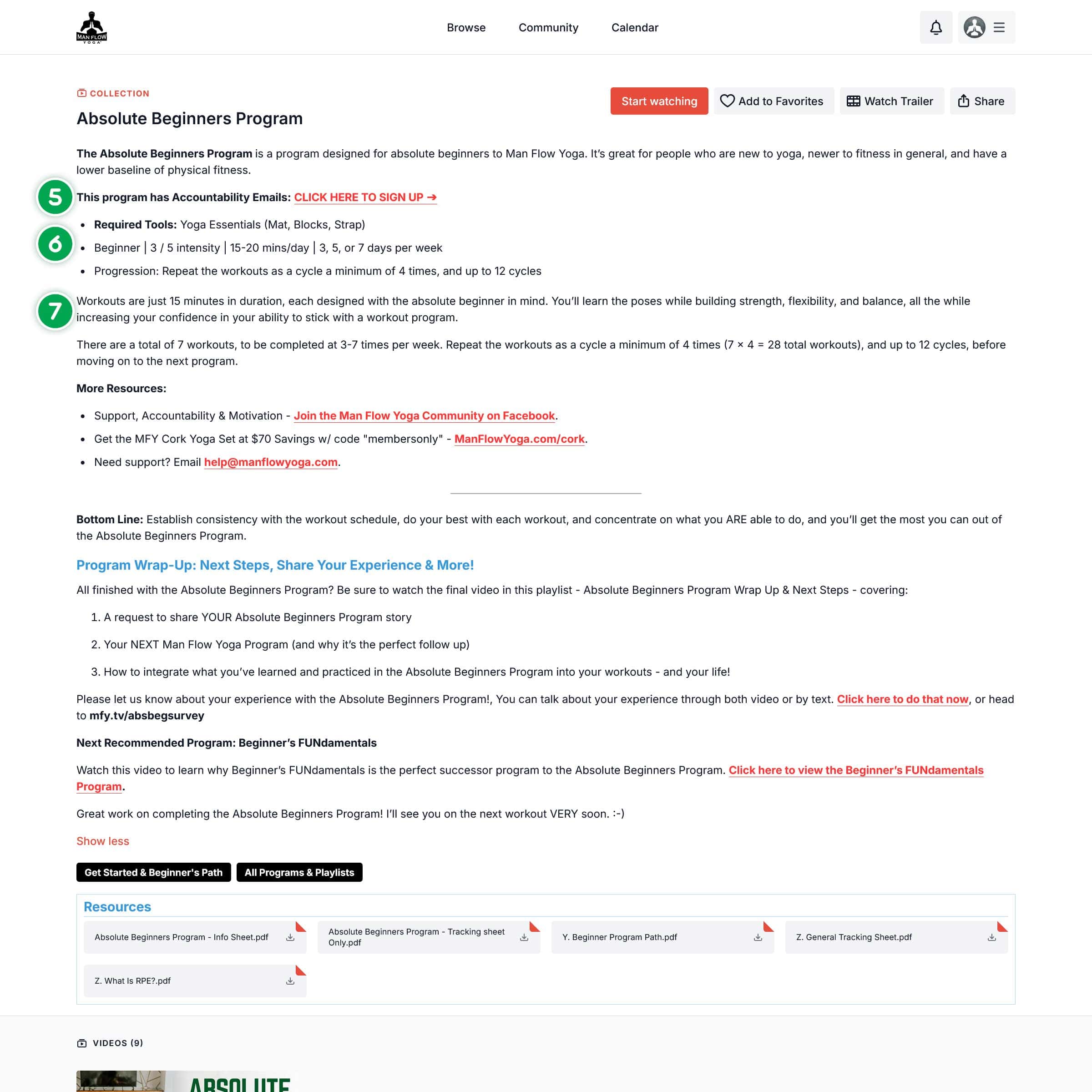
Each Program and Playlist (AKA Collection) has a Homepage with a full description and the included videos shown thumbnail style.
- Show More: The Description starts collapsed to save space. Clicking show more will Expand the description to it’s full height.
- Resources: If a collection has associated PDFs (i.e. Tracking Sheets, Guides, etc) it will show up after the description in the resources area
- Add to Favorites: This button, located to the right of the title, will add the Collection to your Favorites list.
- Video List: A Full thumbnail overview of the videos included in the collection.
(Numbers 5-7 are on the image with the description Expanded)
- Accountability Emails: Use the link here to get emails for the program you are viewing (ONLY Programs have accountability Emails.)
- Quick Details.
- Full Description.
Collection Playlist View
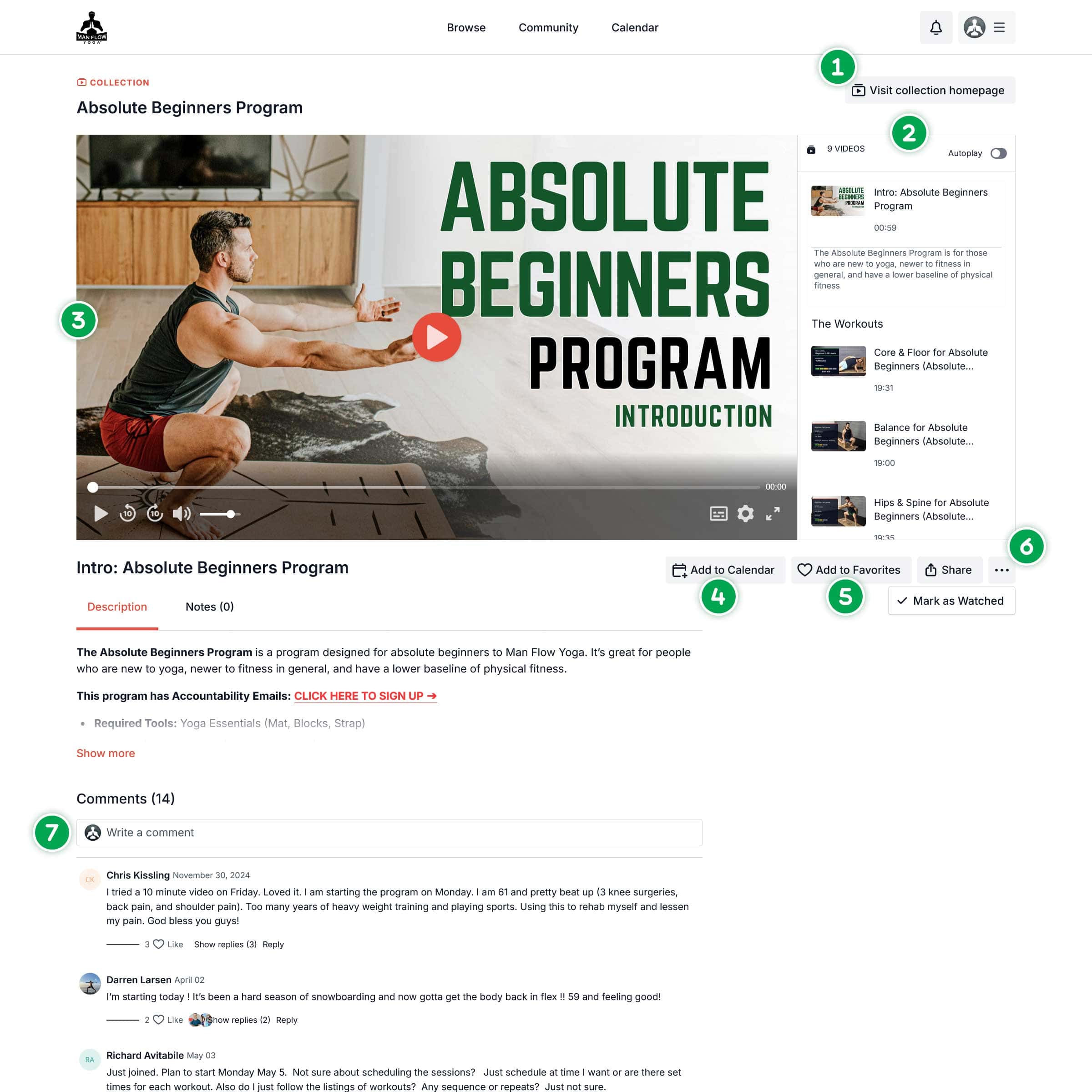
When you click a thumbnail or the “Start Watching” button on a Collection Homepage, you are brought to the playlist View
- Visit Collection Homepage: Leads you to the Collection homepage
- Playlist: A scrollable and selectable list of the videos in this collection.
- Video Player
- Add to Calendar: add the currently selected workout to your Calendar.
- Add to Favorites: add the currently selected workout to your Favorites. (Not the collection)
- “…” Button: allows you to mark a video as Watched or Unwatched
- Comments: See what other members have to say about and leave your own thoughts and advice
Individual Video Page
- Video Player
- Title of the current Video
- Add to Calendar: add the workout to your Calendar.
- Add to Favorites: add or remove the workout to your Favorites.
- “…” Button: allows you to mark a video as Watched or Unwatched.
- Description: A quick summary followed by more details. Starts closed to save space.
- Show More: Expands the description to it’s full height.
- Comments: See what other members have to say about and leave your own thoughts and advice
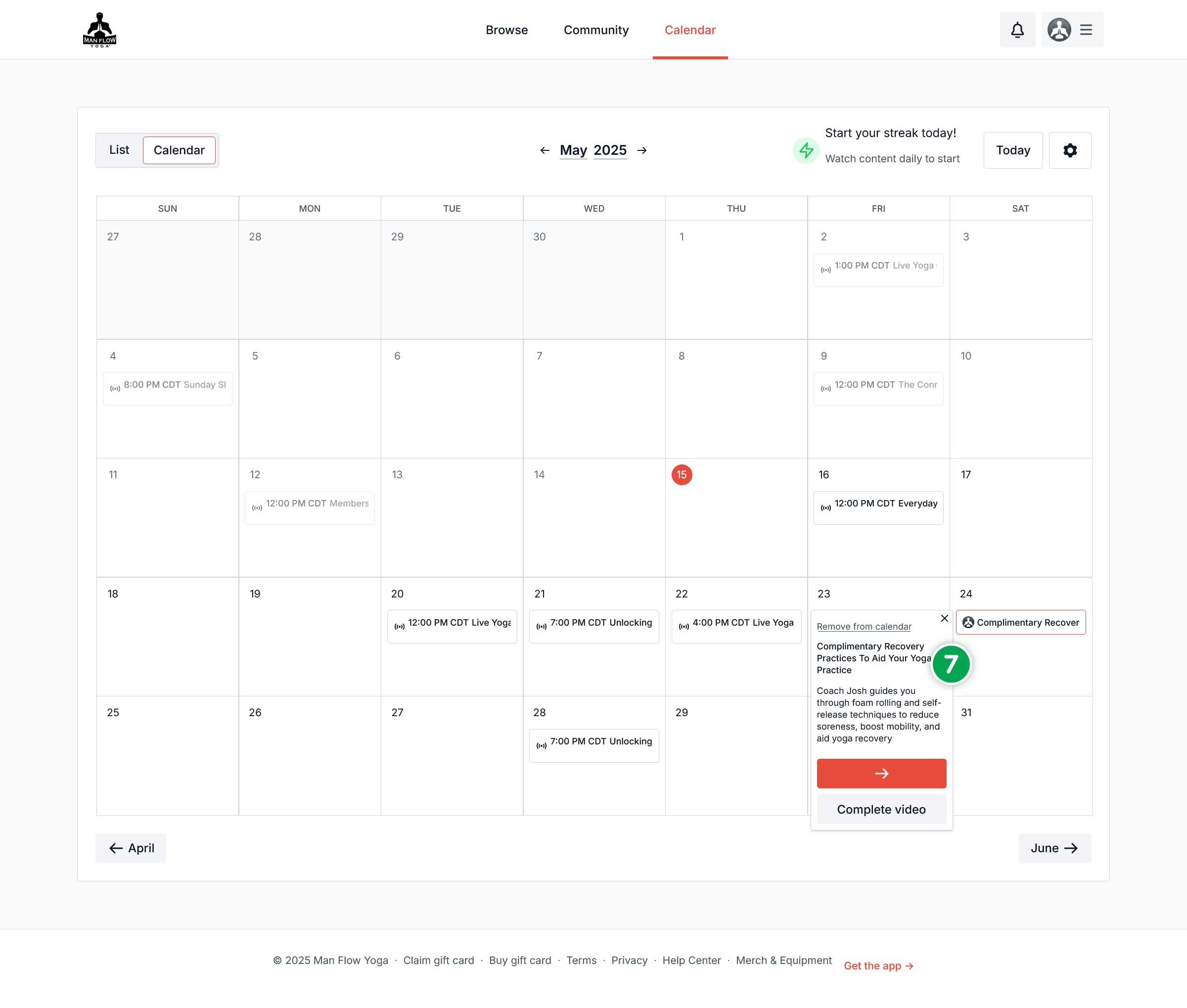
Members' Area Calendar
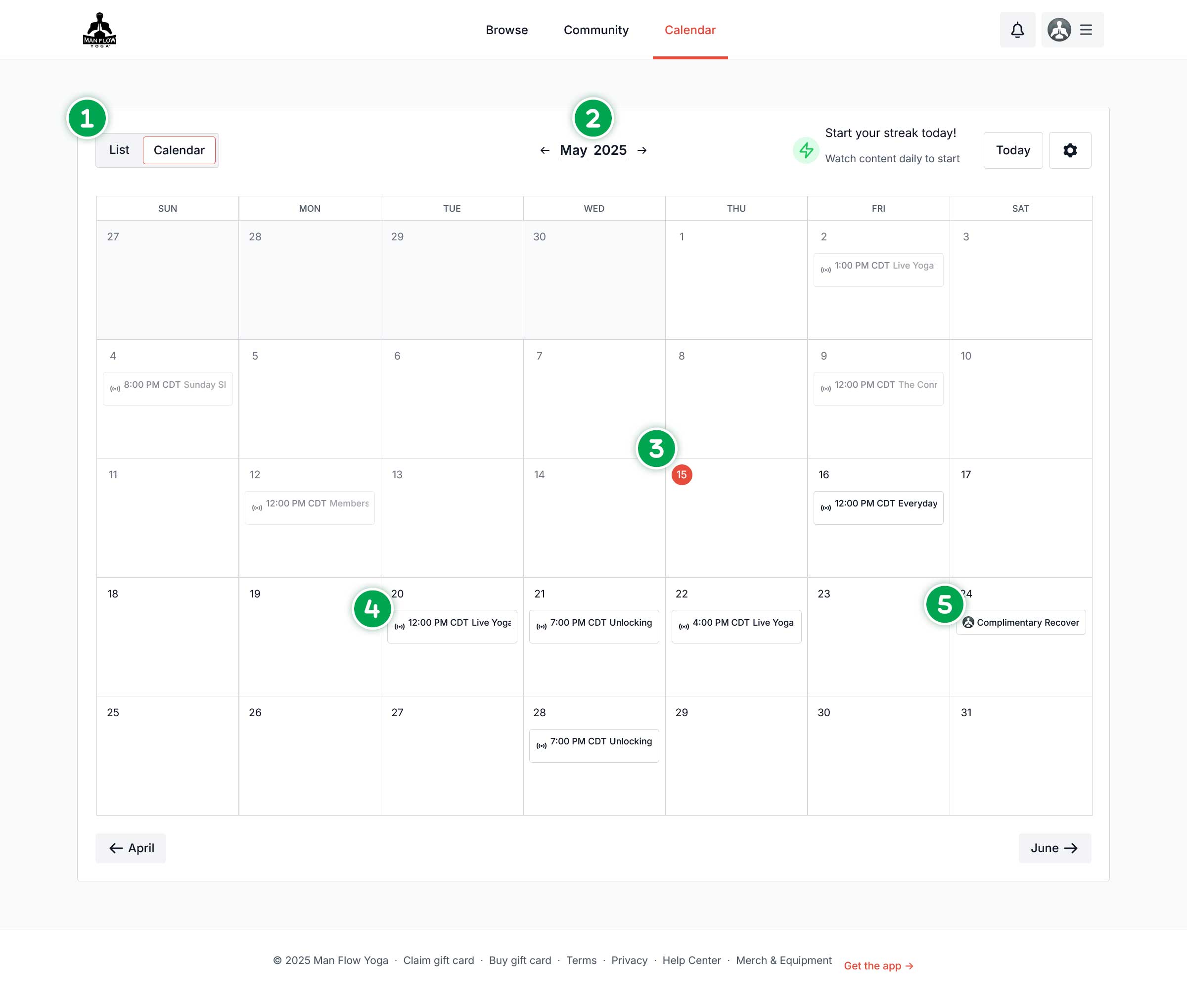
- List or Calendar View: you have the option of viewing this as a list of events or A calendar.
- Date Chooser: Use this to change months.
- Current Date: Highlighted
- Live Events: Always have this symbol and are added by Admin.
- Your Scheduled Items: Videos you add to the calendar will show up with either your profile pic or initials.
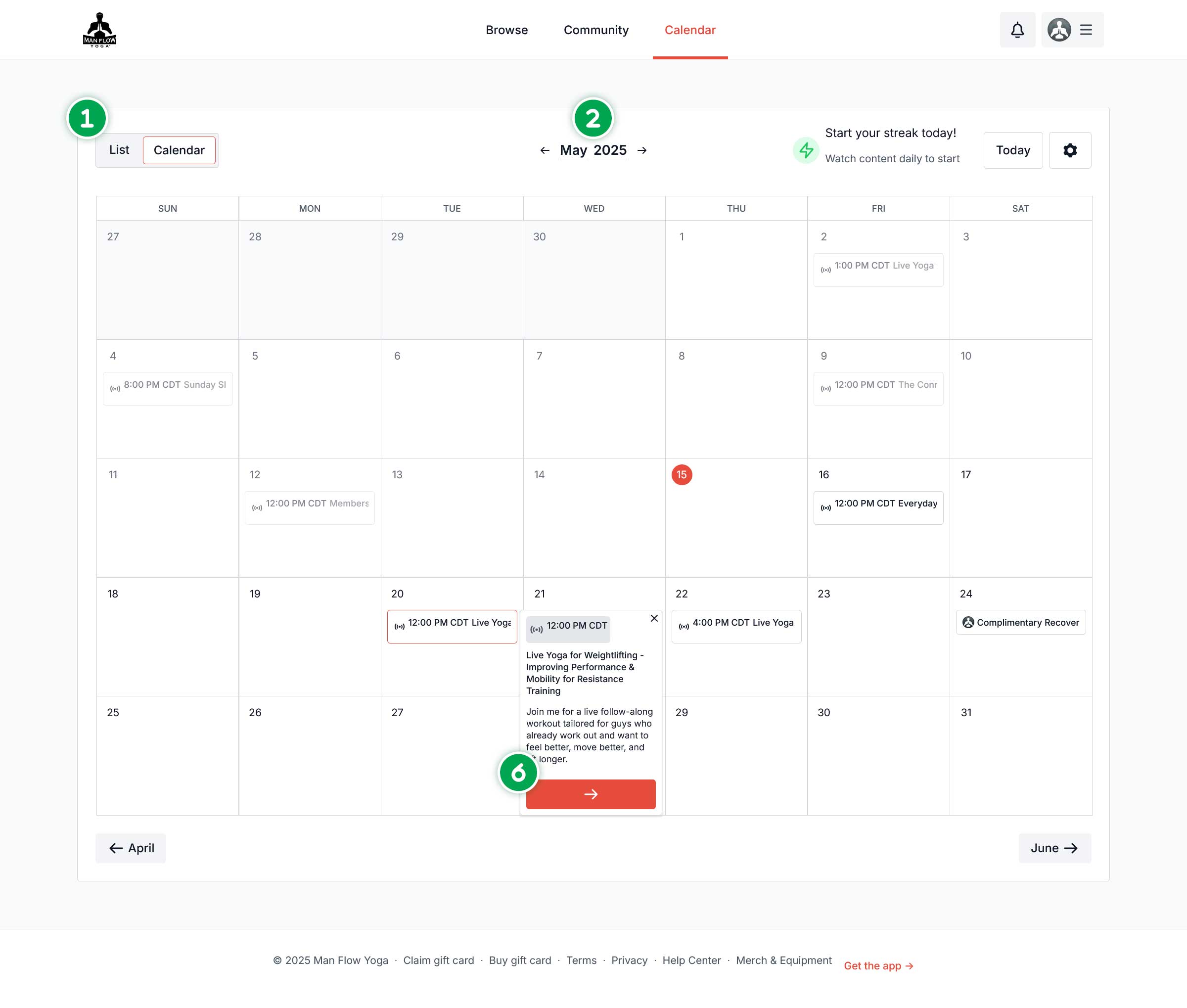
- Live Event Popup: Clicking the event brings up a pop up with a short description and a link to the main event page
- Scheduled workout Popup: A short description and options to “complete” the workout, go to the workout Page, or Remove the scheduled item
- Example of List view


